
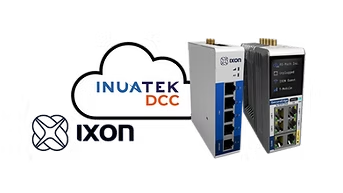
IXON Cloud and DCC: who does what
IXON Cloud is the remote access cloud and DCC is the data and dashboard platform. They solve different parts of the same job, so most machine builders use both.
- IXON Cloud (remote access cloud): secure VPN remote access, router management in Fleet Manager and configuration of the data logging service
- IXrouter3: the edge gateway at the machine, reading PLC tags and publishing them over MQTT
- Inuatek DCC: dashboards, alarms, reports, data history, customer access and fleet views across every connected machine, with IXON remote access built into the dashboards
IXON remote access inside DCC dashboards
DCC includes an IXON remote access widget, so the alarm, its history and the machine's HMI sit on the same dashboard. Service engineers go from a warning to the machine without switching tools.
- Sign in with your IXON account, including two-factor authentication
- Link the widget to the IXrouter3 at the machine
- Open a VNC session to the machine's HMI directly inside the dashboard
Users sign in with their own IXON account, so the access rights you manage in IXON Remote Access Cloud still apply.
IXrouter3 highlights
- Built-in VPN and remote access to PLCs, HMIs and other control systems
- Local logging and buffering of machine data
- Ethernet, RS-232, RS-485 and USB connectivity
- Edge intelligence with trigger-based data logging and preprocessing
How IXON MQTT to DCC works
The IXrouter3 publishes logged tags to a custom MQTT broker configured in IXON Cloud. For DCC, that broker is the Inuatek DCC MQTT broker.
- IXrouter3 firmware 3.28 or higher is required
- Encrypted MQTT over TLS on port 8883
- Authentication with a device-specific client certificate and key generated by DCC
- JSON message format, selected in the IXON Cloud broker settings
One custom broker in IXON Cloud serves your whole fleet. Each IXrouter3 is added as its own client with its own DCC certificate.
Set up the IXON MQTT connection in five steps
- 1In DCC, create an IXON IXrouter3 device using the router's MAC address as Device Identifier, and download the certificate package
- 2In IXON Cloud, under Admin, Device settings, MQTT, add a custom broker with the DCC broker host, port 8883, the ca.crt file and JSON message format
- 3Add a client to the broker using the client.crt and client.key files from the certificate package
- 4In Fleet Manager, open the router's data logging service, enable Use custom broker, select the DCC broker and set the topic to the MAC address followed by a slash, e.g. C0:D3:91:33:42:43/
- 5Push the configuration to the IXrouter3 and confirm the incoming tags in the DCC Data viewer
The IXON setup guide under Technical resources walks through every screen, and the setup video shows it end to end in five minutes.
Frequently asked questions
Which IXON routers can send data to DCC?
The DCC integration covers the IXON IXrouter3. Firmware version 3.28 or higher is required for MQTT connectivity.
Do I need a username and password for the IXON MQTT connection?
No. Each IXrouter3 authenticates to the DCC MQTT broker with its own client certificate and key, downloaded when you create the device in DCC. The username and password fields in IXON Cloud stay empty.
Do I need a separate MQTT broker in IXON Cloud for every router?
No. Create the DCC custom broker once in IXON Cloud and add each IXrouter3 to it as a client with that router's own certificate and key.
How do I choose where the IXON data appears in DCC?
The MQTT topic starts with the router's MAC address, matching the Device Identifier in DCC. To place the tags under a specific collector, append dcc/data/ and the collector name, e.g. C0:D3:91:33:42:43/dcc/data/PLC1.
Can I use IXON remote access from DCC?
Yes. Add the IXON remote access widget to a DCC dashboard, sign in with your IXON account and link it to the router. The VNC session to the machine's HMI then opens inside the dashboard.